
How to Download Jenkins - Windows, macOS, Linux, Docker
Updated on Aug 20, 2026 | 14 min read | 12.89K+ views
Share:
Table of Contents
View all
If you're a developer, you know that Jenkins is an essential tool for your workflow. Jenkins is a continuous integration (CI) server that helps you automate the build, test, and deploy process of your software projects. Jenkins download takes care of all the tedious and time-consuming tasks involved in development so you can focus on writing code.
If you are in the process of automating your software development or you are looking for a way to optimize your current practices, you can download Jenkins on Windows, macOS, Linux, as well as Docker. Here, we will take you through the steps to get Jenkins up and running on your system. We also get you the requirements for installing Jenkins and configuring it for your own projects.
Master the Right Skills & Boost Your Career
Avail your free 1:1 mentorship session
Why Use Jenkins?
Jenkins is an open-source automation server written in Java. It is a powerful tool that provides you with numerous benefits including:
- Automatically build and test your code whenever you commit changes.
- Deploy your code automatically to testing or production servers.
- Orchestrate complex Jenkins deployment pipelines that include multiple stages, such as building a Docker image, pushing it to a registry, and then deploying it to a server.
- There are over 1,000 plugins available that allow you to integrate Jenkins with a wide range of tools, including Amazon AWS, Microsoft Azure, Slack, and more.
- The Jenkins user community is large and their contributors help to make it better with each release.
In a nutshell, Jenkins provides an easy way to set up a continuous integration or continuous delivery (CI/CD) pipeline. Jenkins certification will make you an expert in utilizing Jenkins for software delivery. This brings numerous benefits such as reduced risks and faster software delivery.
Before You Download Jenkins
Downloading Jenkins is as simple as a few clicks. However, before you download Jenkins, it is important to consider some crucial factors in Jenkins documentation;
Understanding Release Types
Jenkins offers two different types of releases: stable (LTS) and regular. It is important to understand the difference between the two before you download Jenkins:
- Stable (LTS) releases are chosen every 12 weeks from the stream of regular releases. They include bug and security fix backports. LTS Jenkins releases are supported for one year after their initial release and receive security updates for an additional year.
- Regular releases are delivered on a weekly cadence and include new features and bug fixes. They are aimed at users and plugin developers who need the latest features and don't mind dealing with potential bugs.
If you're looking for a stable, well-supported version of Jenkins, go with the Jenkins LTS download release. If you need the latest features and don't mind dealing with potential bugs, go with a regular release.
Prerequisites
Before you download Jenkins, it is important to understand the prerequisites. It will ensure that Jenkins runs smoothly on your system:
Hardware Requirements
- Jenkins requires 256 MB of RAM and 1 GB of drive space. However, it is recommended that you have at least 10 GB of drive space and 2 GB of RAM if you are running Jenkins as a Docker container.
- If you are a part of a small team, it is recommended that you have at least 4 GB of RAM and 50 GB of drive space for Jenkins installation.
Software Requirements
- Modern versions of Jenkins require Java 8 or 11.
- Supported web browsers include Google Chrome, Mozilla Firefox, MS Edge, and Safari.
- Jenkins can run on Windows.
- Linux and Mac operating systems can also be used for running Jenkins in Docker.
How to Download Jenkins?
While Jenkins is a powerful tool, it can be challenging to download and set up. You need to first download it, and then unlock it. Fortunately, once you know the steps, the process is relatively straightforward. Let’s take a look;
Steps to Download Jenkins (With HQ Screenshots)
Missing a step in Jenkins download can lead to problems installing it. To avoid any problem, follow all the steps as instructed:
For Windows
- Visit https://www.jenkins.io/download/ and choose Windows.
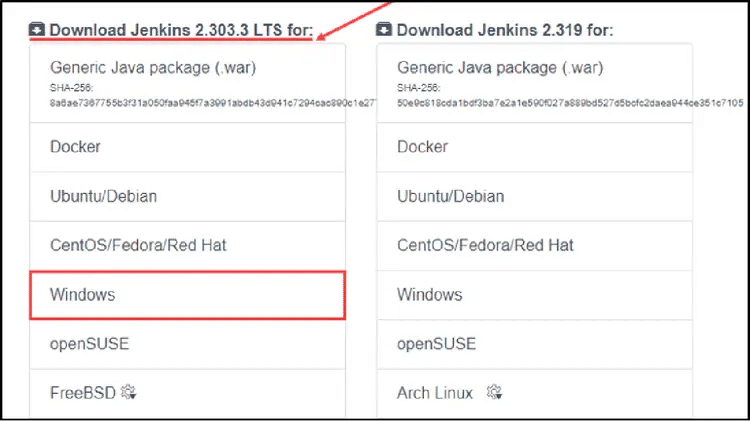
- Once you download it, go for the downloads folder on your system and unzip the Jenkins package by extracting its files.
- After that, double-click on the jenkins.msi file.
- Now the installation screen will appear, select Next.
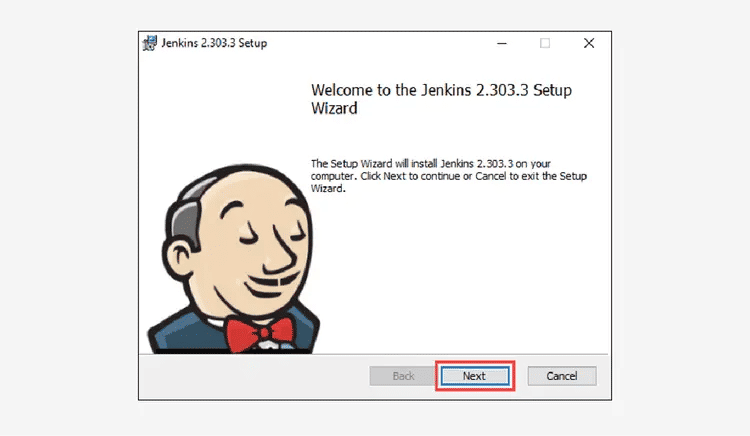
- Select the installation location and click Next to go further.
- Enter credentials for Logon type and click on Next.
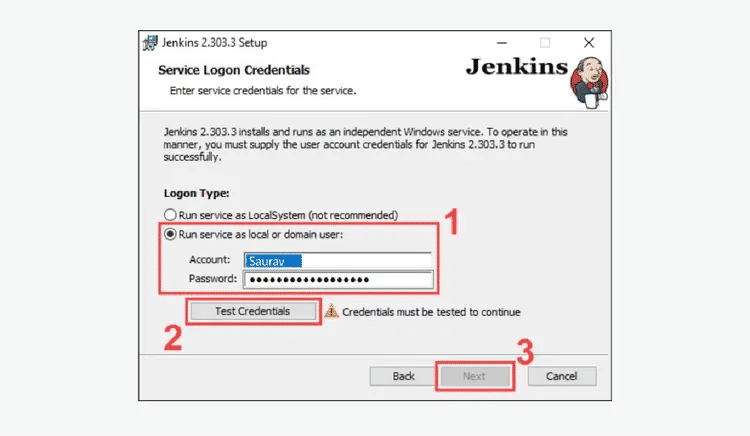
- After that, Choose Port as 8080 and proceed with the Next option, till you reach the Install option.
- Now, click Install and allow the prompts to begin the installation.
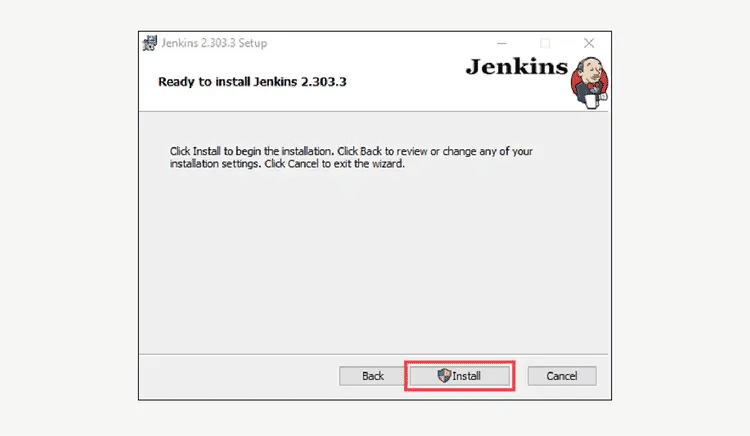
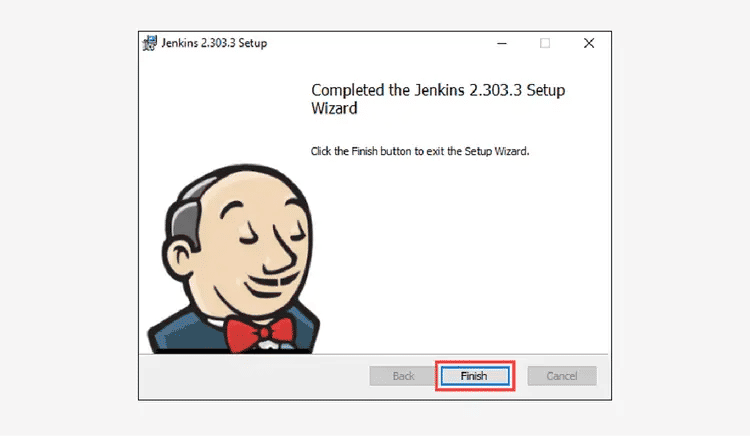
- After a while, finish the Jenkins installation steps, by choosing Finish, and Jenkins will be installed on your Windows OS.
For macOS
- Visit https://www.jenkins.io/download/ and choose Mac OS X.
- Scroll down to reach Native Installer and select Installers for previous Jenkins version.
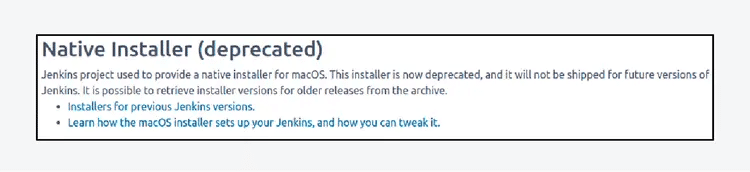
- Now select the Jenkins version 2.222.1 or the latest to download and open it.
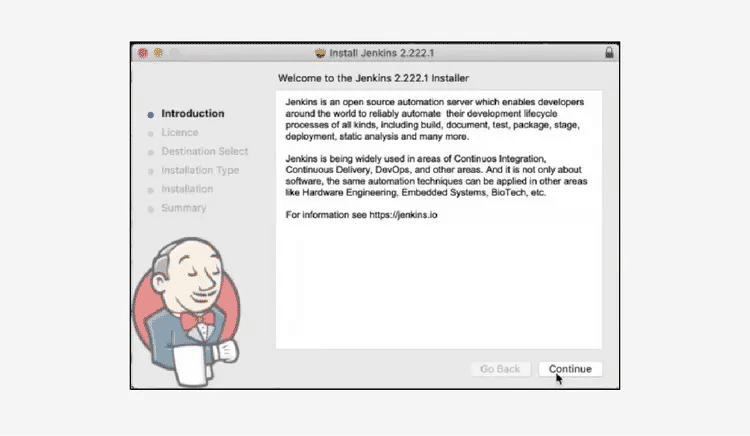
- Once the Installer opens, click on Continue.
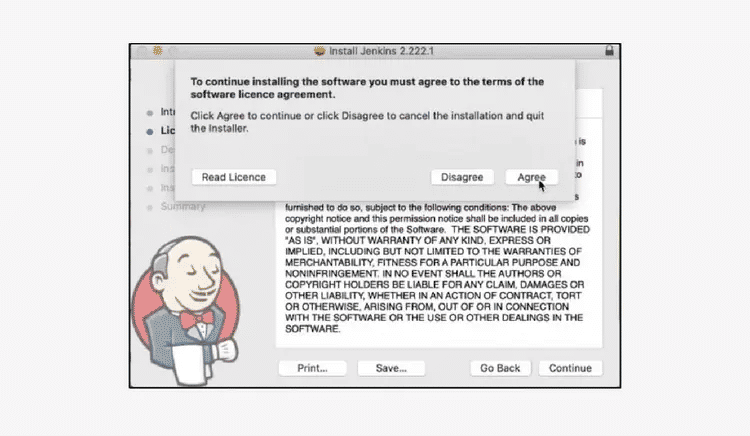
- Read the License Agreement and choose Continue and Agree respectively.
- After that, select the destination and hit Continue.
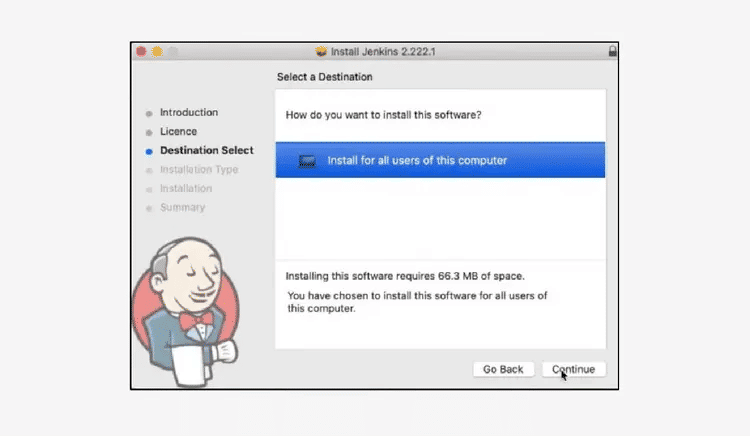
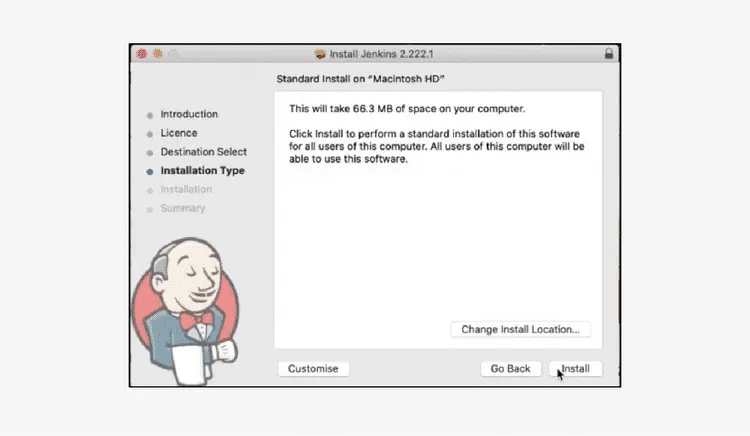
- Choose Install and you’ll be prompted for user name and password.
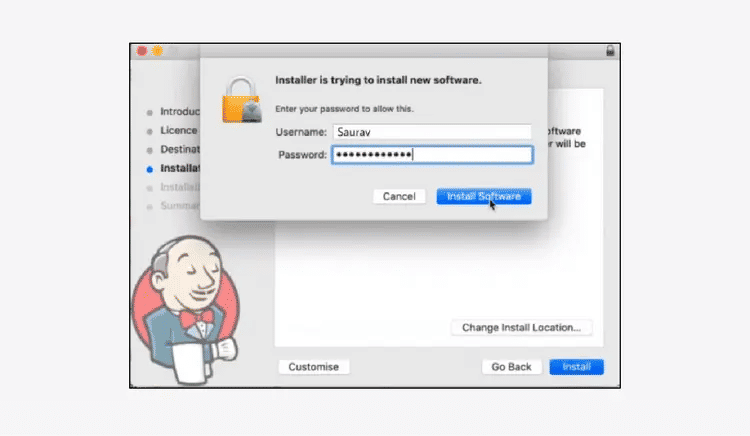
- Now, enter credentials and hit Install Software.
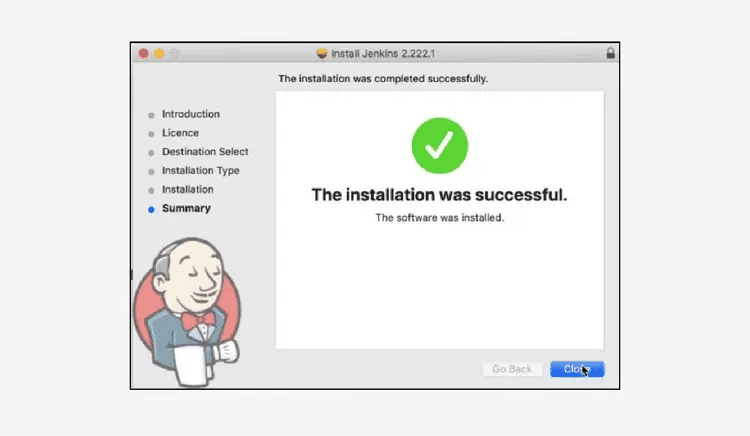
Finally, upon completion of the installation, choose the ‘Close’ option.
For Linux
Launch the CMD and login as a sudo/root user and update the system by the following command:
Sudo dnf update - y- After that, you must paste the following command:
sudo wget -O /etc/yum.repos.d/jenkins.repo https://pkg.jenkins.io/redhat-stable/jenkins.repo
sudo rpm --import https://pkg.jenkins.io/redhat-stable/jenkins.io.key
3. Now, install Jenkins by using the next command:
yum install fontconfig java-11-openjdk
yum install jenkins
4. Once installed, you will need to start Jenkins by using the following command:
Sudo system ctl start jenkins For Docker
- Launch the CMD process and use the below command and hit Enter:
docker run -p 8080:8080 -p 50000:50000 --restart=on-failure jenkins/jenkins:lts-jdk11 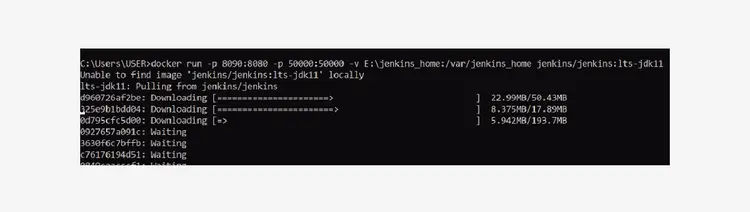
- Once Jenkins gets downloaded on your docker, you are required to set it up. You can find the password
at /var/jenkins_home/secrets/initialadminpassword or you can copy the code that appears on your system.
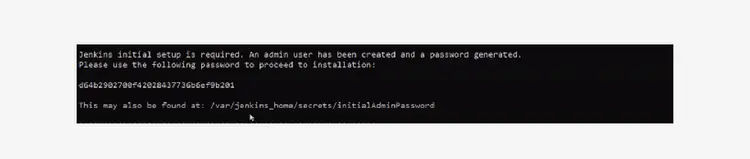
3. Now, you can use the Local host to unlock Jenkins by providing the password that you received recently.
How to Unlock Jenkins?
After you install Jenkins on your system, it is necessary to start its configuration for its proper use. To do this, follow the below instructions:
As soon as you finish installing Jenkins on your system, you must open your web browser and search http://localhost:8080 or http://localhost:8090 based on your port selection.
Once you visit the local host, you’ll be asked for credentials. If you’re a Windows user, you’ll get the administrator password under the installation path of Jenkins. The default one is C:\Program Files (x86)\Jenkins. However, it also varies on what directory you chose during its installation.
Once you reach there, look for the InitialAdminPassword file and open it to copy the code. Now paste the code into the pop-up tab prompting for password and choose Continue to unlock Jenkins successfully.
Mac users will get the location of the password on their screen. It is generally, /Users/Shared/Jenkins/Home/Secrets/Initialadminpassword. However, it can also vary if you chose a different installation folder.
Linux users can enter sudo cat /var/lib/Jenkins/secrets/initialadminpassword and they will get the password.
Docker users will get the password on their CMD screen after they finish the installation of Jenkins. Also, they can reach /var/jenkins_home/secrets/initialadminpassword to copy the password.
Customize Jenkins
Customizing Jenkins allows you to optimize your build pipeline for specific environment. It leads to faster builds and when combined with DevOps certification, the opportunities for your growth are doubled. Here’s how you can customize Jenkins:
- In order to install the essential plugins for Jenkins, simply click on the "Install suggested plugins button". Jenkins will automatically begin to download and install all of the necessary plugins.
- You also have the option to "Select Plugins to Install" and hand-pick which plugins you would like to install.
- After all of the desired plugins have been installed, fill out the fields in the "Create First Admin User" panel with your account details and hit "Save and Finish".
- Lastly, it will ask for URL information. Here, you can configure the default instance path for Jenkins.
Unless you have a good reason to change it, leave it as it is so as to avoid any confusion later on. If another application is already using port 8080, you can simply choose another port and you are all set! Now, you are ready to create some Jenkins Jobs.
Jenkins Download Links for All Environments (OS etc.)
| Download Jenkins 2.346.2 LTS for | Download Jenkins 2.359 for |
|---|---|
| Generic Java package (.war) | Generic Java package (.war) |
| Docker | Docker |
| Ubuntu/Debian | Ubuntu/Debian |
| CentOS/Fedora/Red Hat | CentOS/Fedora/Red Hat |
| Windows | Windows |
| openSUSE | openSUSE |
| FreeBSD | Arch Linux |
| Gentoo | FreeBSD |
| macOS | Gentoo |
| OpenBSD | macOS |
| OpenBSD | |
| OpenIndiana Hipster |
How to Verify Jenkins Downloads?
WAR File Verification
When you download a file from the Jenkins server, it is important to verify the authenticity of the file before opening it. One way to do this is to use jarsigner, a tool that is included with the Java Development Kit (JDK).
To use jarsigner, you first need to locate the file that you downloaded from Jenkins. If the file is compressed, you will need to uncompress it first. Once you have located the file, open a command prompt and navigate to the directory where the file is located.
At the command prompt, type "jarsigner -verify -verbose [filename]" and press Enter. This will display information about the file, including whether or not it has been signed by a trusted source.
If you see "jar verified" followed by a certificate chain, then you can be confident that the file is safe to open. If you do not see this message, or if you see an error message instead, then the download package may have been tampered with and should not be opened.
Windows MSI Installers
When you perform the Jenkins download from its official website, the installer file is signed with a digital signature. This signature helps verify the file's integrity and authenticity. You can use the signtool utility to verify the digital signature of the file.
The signtool utility is included in the Windows SDK. To use signtool, you must first install the Windows SDK on your computer. Then, open a command prompt and navigate to the folder where the Jenkins installer file is located.
Run the following command: signtool verify /v jenkins.msi. This will display information about the digital signature, including the signer's identity and the date and time when the file was signed.
If the signature is valid, you will see a message indicating that "Signature verification succeeded." Otherwise, you will see an error message indicating that the signature is invalid. Either way, you can be confident that the file you downloaded has not been tampered with and is safe to install.
Linux Package Repositories
For Linux users, the most common way to do this is by using a Package Manager like apt or yum. These tools will check the digital signatures of the files you're downloading against a known good key, ensuring that the files have not been tampered with.
You can also verify Jenkins downloads by checking the GPG signature. The Jenkins project provides a signing key that you can use to verify the authenticity of your download. Simply run the 'gpg' command against the downloaded file, and you’ll have a detailed report showing whether or not the file has been altered.
How to Deploy Jenkins in Public Cloud?
One of the great things about Jenkins is that you can install Jenkins on AWS, Azure, and Google Cloud Platforms like public clouds. There are two main ways to deploy Jenkins in a public cloud: using a managed service or using a self-managed virtual machine.
If you choose to use a managed service, then the cloud provider will take care of provisioning and managing the underlying infrastructure for you. This can be a great option if you don't want to deal with the complexities of setting up and maintaining your own Jenkins server. However, it can also be more expensive than running your own server.
If you choose Jenkins deployment on your own server, then you will need to provision and configure a virtual machine in the public cloud. This option gives you more control over the server, but it also requires more work to set up and maintain. Once you have provisioned your virtual machine, you can follow the official instructions for installing Jenkins.
Once Jenkins is up and running, you will need to configure it in order to allow access from the outside world. This can be done by setting up a reverse proxy or by using a tool such as ngrok. Once your instance is properly configured, you should be able to access Jenkins cloud from anywhere in the world.
Conclusion
Jenkins is a continuous integration server that enables developers to find and solve problems faster. It is an open-source project that has been around for over 10 years and has more than 1,000 contributors. There are thousands of plugins available, making Jenkins extremely versatile and its community is one of the key reasons why it has been so successful.
While it was originally designed for Java projects, Jenkins now supports builds written in over 150 programming languages. We hope this article helped you download and install Jenkins easily.
KnowledgeHut Jenkins certification can provide you with all the knowledge necessary to utilize Jenkins effectively. With this knowledge under your belt, you will be able to streamline your development process and enhance your career opportunities.
Frequently Asked Questions (FAQs)
1. Is Jenkins completely free?
Jenkins is an open-source automation server that enables developers to build, test and deploy their software. It is free to use and distribute under the MIT license. Jenkins supports a wide range of plugins to enable you to integrate them with your existing tools and processes.
While Jenkins is free to use, it does require a dedicated server and some technical expertise to set up and maintain. However, once up and running, it can provide a cost-effective way to automate your builds and tests.
2. How do I download Jenkins?
To start Jenkins download, head to the official website at jenkins.io. On the left-hand side of the screen, under the "Download" heading, click on the platform that you’re willing to install Jenkins on.
Once the file is downloaded, launch it and follow the instructions on that page to complete the installation. Once Jenkins is up and running, you can start using it to automate your build process.
3. On which OS can Jenkins be installed?
Jenkins can be installed on a variety of operating systems, including Windows, macOS, Linux, and more. In addition, Jenkins can be run on a wide range of web servers and application servers, such as Apache Tomcat and Jetty.
There are also a number of cloud-based solutions that allow you to run Jenkins in the cloud. Regardless of your platform or infrastructure, there is a way to install and run Jenkins.
4. How do I start Jenkins on Windows 10?
To start Jenkins on Windows 10, make sure that you’re logged in as an admin. After that, follow the below instructions:
- Double-click the Jenkins icon. If you have UAC enabled, you will be prompted for permission.
- Once Jenkins starts, you should see the Unlock Jenkins screen.
- Enter the administrator password that you set during the installation process, and click Continue.
- On the next screen, select Install suggested plugins. This will install a set of default plugins, which will provide basic functionality for Jenkins.
- Once the plugin installation is complete, you will be prompted to create a first admin user.
- Fill in the required fields, and click Save and Finish.
- You should now be able to access Jenkins dashboard at http://localhost:8080/.
76 articles published
Abhresh is specialized as a corporate trainer, He has a decade of experience in technical training blended with virtual webinars and instructor-led session created courses, tutorials, and articles for...
Get Free Consultation
By submitting, I accept the T&C and
Privacy Policy