
- Blog Categories
- Project Management
- Agile Management
- IT Service Management
- Cloud Computing
- Business Management
- BI And Visualisation
- Quality Management
- Cyber Security
- DevOps
- Most Popular Blogs
- PMP Exam Schedule for 2025: Check PMP Exam Date
- Top 60+ PMP Exam Questions and Answers for 2025
- PMP Cheat Sheet and PMP Formulas To Use in 2025
- What is PMP Process? A Complete List of 49 Processes of PMP
- Top 15+ Project Management Case Studies with Examples 2025
- Top Picks by Authors
- Top 170 Project Management Research Topics
- What is Effective Communication: Definition
- How to Create a Project Plan in Excel in 2025?
- PMP Certification Exam Eligibility in 2025 [A Complete Checklist]
- PMP Certification Fees - All Aspects of PMP Certification Fee
- Most Popular Blogs
- CSM vs PSM: Which Certification to Choose in 2025?
- How Much Does Scrum Master Certification Cost in 2025?
- CSPO vs PSPO Certification: What to Choose in 2025?
- 8 Best Scrum Master Certifications to Pursue in 2025
- Safe Agilist Exam: A Complete Study Guide 2025
- Top Picks by Authors
- SAFe vs Agile: Difference Between Scaled Agile and Agile
- Top 21 Scrum Best Practices for Efficient Agile Workflow
- 30 User Story Examples and Templates to Use in 2025
- State of Agile: Things You Need to Know
- Top 24 Career Benefits of a Certifed Scrum Master
- Most Popular Blogs
- ITIL Certification Cost in 2025 [Exam Fee & Other Expenses]
- Top 17 Required Skills for System Administrator in 2025
- How Effective Is Itil Certification for a Job Switch?
- IT Service Management (ITSM) Role and Responsibilities
- Top 25 Service Based Companies in India in 2025
- Top Picks by Authors
- What is Escalation Matrix & How Does It Work? [Types, Process]
- ITIL Service Operation: Phases, Functions, Best Practices
- 10 Best Facility Management Software in 2025
- What is Service Request Management in ITIL? Example, Steps, Tips
- An Introduction To ITIL® Exam
- Most Popular Blogs
- A Complete AWS Cheat Sheet: Important Topics Covered
- Top AWS Solution Architect Projects in 2025
- 15 Best Azure Certifications 2025: Which one to Choose?
- Top 22 Cloud Computing Project Ideas in 2025 [Source Code]
- How to Become an Azure Data Engineer? 2025 Roadmap
- Top Picks by Authors
- Top 40 IoT Project Ideas and Topics in 2025 [Source Code]
- The Future of AWS: Top Trends & Predictions in 2025
- AWS Solutions Architect vs AWS Developer [Key Differences]
- Top 20 Azure Data Engineering Projects in 2025 [Source Code]
- 25 Best Cloud Computing Tools in 2025
- Most Popular Blogs
- Company Analysis Report: Examples, Templates, Components
- 400 Trending Business Management Research Topics
- Business Analysis Body of Knowledge (BABOK): Guide
- ECBA Certification: Is it Worth it?
- Top Picks by Authors
- Top 20 Business Analytics Project in 2025 [With Source Code]
- ECBA Certification Cost Across Countries
- Top 9 Free Business Requirements Document (BRD) Templates
- Business Analyst Job Description in 2025 [Key Responsibility]
- Business Analysis Framework: Elements, Process, Techniques
- Most Popular Blogs
- Best Career options after BA [2025]
- Top Career Options after BCom to Know in 2025
- Top 10 Power Bi Books of 2025 [Beginners to Experienced]
- Power BI Skills in Demand: How to Stand Out in the Job Market
- Top 15 Power BI Project Ideas
- Top Picks by Authors
- 10 Limitations of Power BI: You Must Know in 2025
- Top 45 Career Options After BBA in 2025 [With Salary]
- Top Power BI Dashboard Templates of 2025
- What is Power BI Used For - Practical Applications Of Power BI
- SSRS Vs Power BI - What are the Key Differences?
- Most Popular Blogs
- Data Collection Plan For Six Sigma: How to Create One?
- Quality Engineer Resume for 2025 [Examples + Tips]
- 20 Best Quality Management Certifications That Pay Well in 2025
- Six Sigma in Operations Management [A Brief Introduction]
- Top Picks by Authors
- Six Sigma Green Belt vs PMP: What's the Difference
- Quality Management: Definition, Importance, Components
- Adding Green Belt Certifications to Your Resume
- Six Sigma Green Belt in Healthcare: Concepts, Benefits and Examples
- Most Popular Blogs
- Latest CISSP Exam Dumps of 2025 [Free CISSP Dumps]
- CISSP vs Security+ Certifications: Which is Best in 2025?
- Best CISSP Study Guides for 2025 + CISSP Study Plan
- How to Become an Ethical Hacker in 2025?
- Top Picks by Authors
- CISSP vs Master's Degree: Which One to Choose in 2025?
- CISSP Endorsement Process: Requirements & Example
- OSCP vs CISSP | Top Cybersecurity Certifications
- How to Pass the CISSP Exam on Your 1st Attempt in 2025?
- Most Popular Blogs
- Top 7 Kubernetes Certifications in 2025
- Kubernetes Pods: Types, Examples, Best Practices
- DevOps Methodologies: Practices & Principles
- Docker Image Commands
- Top Picks by Authors
- Best DevOps Certifications in 2025
- 20 Best Automation Tools for DevOps
- Top 20 DevOps Projects of 2025
- OS for Docker: Features, Factors and Tips
- More
- Agile & PMP Practice Tests
- Agile Testing
- Agile Scrum Practice Exam
- CAPM Practice Test
- PRINCE2 Foundation Exam
- PMP Practice Exam
- Cloud Related Practice Test
- Azure Infrastructure Solutions
- AWS Solutions Architect
- IT Related Pratice Test
- ITIL Practice Test
- Devops Practice Test
- TOGAF® Practice Test
- Other Practice Test
- Oracle Primavera P6 V8
- MS Project Practice Test
- Project Management & Agile
- Project Management Interview Questions
- Release Train Engineer Interview Questions
- Agile Coach Interview Questions
- Scrum Interview Questions
- IT Project Manager Interview Questions
- Cloud & Data
- Azure Databricks Interview Questions
- AWS architect Interview Questions
- Cloud Computing Interview Questions
- AWS Interview Questions
- Kubernetes Interview Questions
- Web Development
- CSS3 Free Course with Certificates
- Basics of Spring Core and MVC
- Javascript Free Course with Certificate
- React Free Course with Certificate
- Node JS Free Certification Course
- Data Science
- Python Machine Learning Course
- Python for Data Science Free Course
- NLP Free Course with Certificate
- Data Analysis Using SQL
- Home
- Blog
- Business Intelligence And Visualization
- Excel for Data Analysis: Functions, Tools and a Worked Example
Excel for Data Analysis: Functions, Tools and a Worked Example
Updated on Oct 22, 2026
Share:
Table of Contents
View all
Quick Overview
- Excel for data analysis involves using spreadsheet functions, formulas, tables, and charts to organize data, calculate metrics, identify patterns, and make informed business decisions.
- Essential Excel Functions for Data Analysis: Functions such as SUMIFS, COUNTIFS, IF, VLOOKUP, AVERAGE, MEDIAN, STDEV.S, and TRIM help perform conditional calculations, match records, analyze statistics, and clean data.
- Excel Tools for Data Analysis: Sort and Filter, PivotTables, Conditional Formatting, Power Query, Analyze Data, and What-If Analysis help summarize datasets, identify trends, transform information, and evaluate different business scenarios.
- This guide explains the essential Excel functions and tools for data analysis and demonstrates a worked example of analyzing sales data to compare regional performance, identify top-selling products, and draw data-driven conclusions.
Professionals looking to turn Excel data into actionable business insights can explore AI Powered Product Management to learn how AI-driven analytics supports product decisions, identifies trends, and helps prioritize opportunities based on data.
Last Few Days to Save Up To 90% on Career Transformation
Ends December 1 – Don't Miss Out!
What is Excel for data analysis?
Excel for data analysis means using spreadsheet functions, tools, charts, and tables to organize information, calculate metrics, identify patterns, and make better decisions. It helps turn raw data into useful insights without requiring advanced programming skills.
Excel is widely used by business analysts, finance professionals, marketing teams, sales managers, and students. It works well for everyday analysis, especially when data needs to be cleaned, compared, summarized, or presented in a clear format.
How Excel helps analyze and interpret data
Excel makes it easier to understand data by organizing it into rows and columns and providing tools to calculate and visualize results.
Here is how it helps:
- Organizes information: Store sales records, customer details, expenses, survey responses, and other structured data in worksheets.
- Performs calculations: Use formulas to calculate totals, averages, percentages, growth rates, and other metrics.
- Finds patterns: Identify changes over time, compare categories, and spot unusual values.
- Summarizes large datasets: Use PivotTables to turn thousands of rows into meaningful summaries.
- Communicates findings: Create charts and conditional formatting rules that make important results easier to understand.
Also read: How to transition from Excel to data analytics roles?
What are the essential Excel functions for data analysis?
Excel functions help automate calculations and reduce the need to process information manually. The most useful functions depend on the task, but conditional calculations, logical tests, lookups, statistical measures, and text cleaning are common starting points.
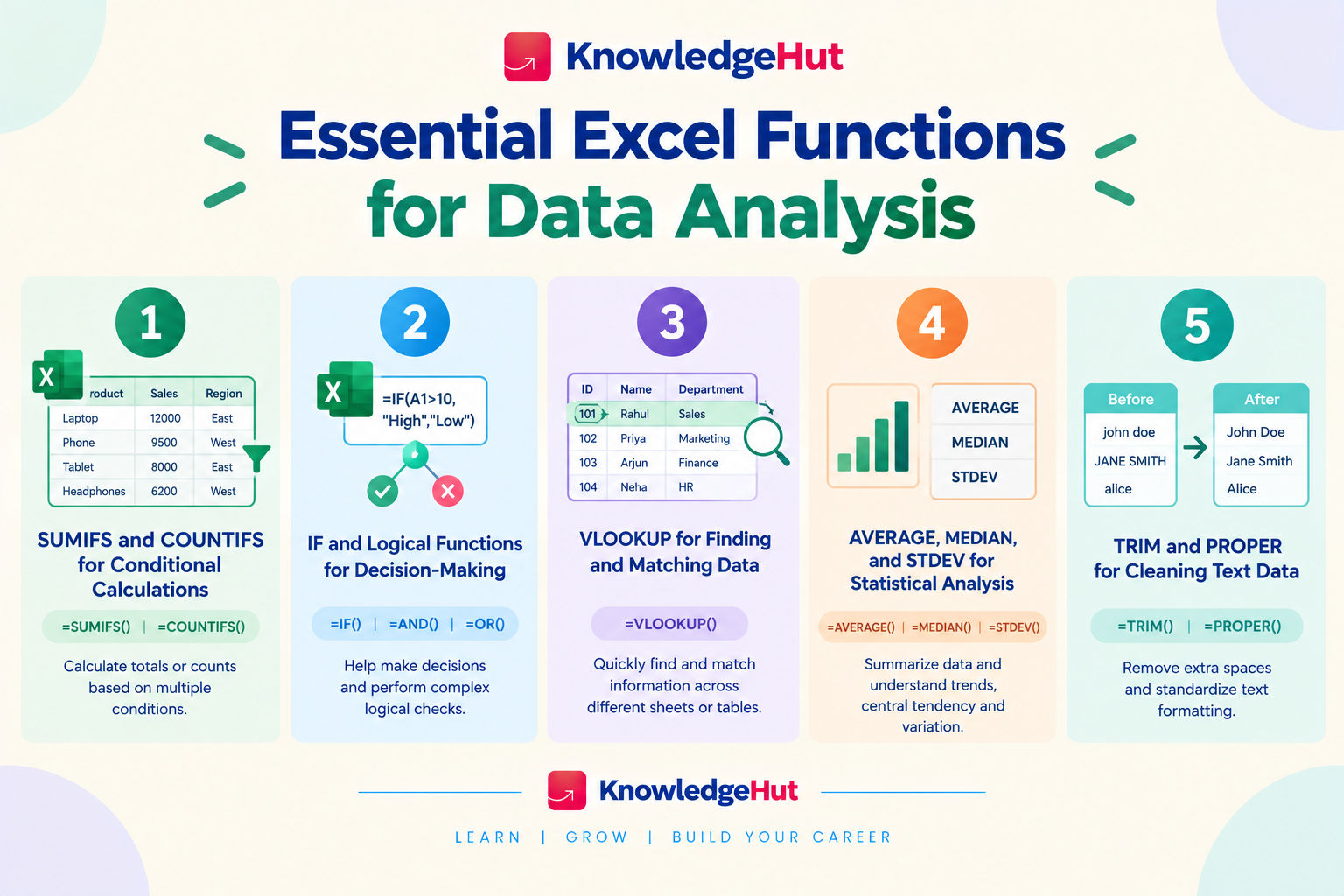
1. SUMIFS and COUNTIFS for conditional calculations
The SUMIFS and COUNTIFS functions calculate totals and counts based on one or more conditions. They are useful when the dataset contains multiple regions, products, departments, or time periods.
- SUMIFS: Adds values that meet specified conditions.
- COUNTIFS: Counts records that meet multiple conditions.
For example, =SUMIFS(D2:D100,B2:B100,"North") adds the values in column D only for records where column B contains North.
Similarly, =COUNTIFS(B2:B100,"North",C2:C100,"Laptop") counts records where the region is North and the product is Laptop.
2. IF and logical functions for decision making
The IF function returns one result when a condition is true and another when it is false. It is helpful when data needs to be classified according to specific rules.
For example, =IF(D2>=10000,"Target met","Below target") checks whether the value in D2 reaches 10,000.
Other useful logical functions include:
- AND: Returns TRUE when all specified conditions are met.
- OR: Returns TRUE when at least one specified condition is met.
- IFERROR: Displays an alternative result when a formula produces an error.
- IFS: Tests multiple conditions and returns the result for the first true condition.
3. VLOOKUP for finding and matching data
VLOOKUP searches for a value in one range and returns the corresponding value from another range. It is useful when information is spread across different tables.
For instance, a product code can be used to find its name or price in a product list. A lookup formula can bring that information into the main dataset without manually searching through rows.
Key benefits include:
- Searching from left to right or right to left.
- Returning an exact match by default.
- Displaying a custom message when a match is missing.
- Returning values from a different column or row.
4. AVERAGE, MEDIAN, and STDEV for statistical analysis
Statistical functions help describe a dataset and understand how its values are distributed.
- AVERAGE: Calculates the arithmetic mean of a set of numbers.
- MEDIAN: Finds the middle value when the numbers are arranged in order.
- STDEV.S: Estimates the standard deviation for a sample.
- STDEV.P: Calculates the standard deviation for an entire population.
5. TRIM and PROPER for cleaning text data
Inconsistent text can affect sorting, matching, and reporting. Excel includes functions that help standardize text before analysis.
- TRIM: Removes extra spaces from text, leaving single spaces between words.
- PROPER: Capitalizes the first letter of each word.
- CLEAN: Removes many nonprinting characters.
- SUBSTITUTE: Replaces specified text with other text.
For example, =TRIM(A2) can remove unwanted spaces from a name, while =PROPER(A2) can standardize its capitalization.
Text cleaning is especially useful when information comes from forms, copied spreadsheets, or multiple data sources. However, always check the results because automatic capitalization may not suit every name, abbreviation, or product label.
Also read: Building Data Visualization in Excel
What are the best Excel tools for data analysis?
Excel includes tools that make it easier to explore data, summarize results, highlight important values, and test different assumptions. The right tool depends on whether the goal is to find a particular record, compare categories, clean information, or forecast possible outcomes.
1. Sort and Filter for exploring data
Sorting arranges data in a chosen order, while filtering displays only the records that meet selected conditions.
Common uses include:
- Sorting sales from highest to lowest.
- Filtering records by region, date, or product.
- Showing only transactions above a selected value.
- Finding blank fields or specific categories.
2. PivotTables for summarizing large datasets
PivotTables summarize data without requiring a separate formula for every category. They allow users to group, count, and compare records by dragging fields into rows, columns, values, and filters.
A PivotTable can help calculate:
- Total sales by region.
- Average revenue by product.
- Number of orders by month.
- Department expenses by category.
3. Conditional formatting for identifying trends and outliers
Conditional formatting changes the appearance of cells when specified conditions are met. It helps draw attention to values that deserve a closer look.
Useful options include:
- Color scales: Compare high and low values visually.
- Data bars: Show the relative size of values within cells.
- Icon sets: Indicate performance levels or direction.
- Highlight rules: Flag duplicates, values above a threshold, or dates within a period.
4. Power Query for data cleaning and transformation
Power Query imports, cleans, and reshapes data from different sources. It is useful when the same preparation steps need to be repeated regularly.
With Power Query, users can:
- Remove duplicate records.
- Rename or remove columns.
- Split or combine columns.
- Change data types.
- Merge tables using matching fields.
- Append data from multiple tables.
- Refresh a saved sequence of transformation steps.
5. Analyze Data for automated insights and visual summaries
Analyze Data is an Excel feature that can help users explore information by asking questions about their dataset and generating suggested summaries, charts, or PivotTables. Availability and features may vary by Excel version, platform, and account.
It can be useful for quickly exploring a table and identifying possible patterns without building every analysis manually.
For reliable results:
- Start with a clearly structured table and meaningful column headings.
- Ask focused questions about the information.
- Review the suggested calculations and visualizations.
- Verify the figures before using them in a report.
6. What If Analysis with Goal Seek and Data Tables
What If Analysis helps users understand how changing assumptions affects a result. It is useful for planning, budgeting, forecasting, and evaluating possible business outcomes.
Excel includes several tools for this purpose:
- Goal Seek: Finds the input needed to reach a specific formula result.
- Data Tables: Show how changing one or two inputs affects a formula's output.
- Scenario Manager: Stores and compares different sets of input values.
For example, Goal Seek can calculate the sales volume required to reach a chosen profit target when the other values in the model are known. These tools help compare possibilities, but their results depend on the assumptions and formulas used.
To explore how generative AI can simplify data-driven workflows, the PG Certificate in Applied Generative Engineering & LLM Applications offers a pathway to understanding LLM-powered solutions and developing intelligent applications for real-world business needs.
How to perform data analysis in Excel step by step
A reliable analysis starts with clean data and a clear question. Excel for data analysis becomes more effective when the work follows a consistent process, from preparing the dataset to interpreting the final results.
Step-1 Prepare and clean the dataset
Before calculating anything, check whether the data is complete, consistent, and arranged properly.
Start by:
- Giving each column a clear heading.
- Checking for missing values and duplicate records.
- Correcting inconsistent dates, numbers, and text formats.
- Removing unnecessary spaces and checking for errors.
- Ensuring each row represents one record.
- Converting the data range into an Excel Table.
Also read: Power BI vs Excel
Step-2 Apply formulas to calculate key metrics
Once the data is ready, identify the measurements needed to answer the analysis question. Use formulas to calculate totals, averages, counts, percentages, or other relevant metrics.
Depending on the task, useful functions may include:
- SUM and SUMIFS for totals.
- COUNTIFS for counting records that meet conditions.
- AVERAGE and MEDIAN for typical values.
- IF for classifying results.
- VLOOKUP for matching information between tables.
Step-3 Summarize data using PivotTables
After calculating the required metrics, use a PivotTable to organize results into a useful summary.
To create one:
- Select a cell within the dataset.
- Choose Insert and then PivotTable.
- Select the source data and where the PivotTable should appear.
- Add categories to Rows and Columns.
- Add the required numeric field to Values.
- Apply filters and adjust the calculation where needed.
Step-4 Identify patterns with conditional formatting
Use conditional formatting to highlight values that may need attention. For example, a rule can flag low performance, highlight duplicate entries, or display a color scale for comparing figures.
Select the relevant cells, open Home, choose Conditional Formatting, and select an appropriate rule. Set thresholds that make sense for the analysis rather than choosing them simply because they look clear.
Review the actual values behind the highlights. A low figure may reflect missing data or a smaller reporting period rather than poor performance.
Step-5 Create charts and interpret the results
Charts help communicate findings, especially when comparing categories or tracking changes over time.
Choose a chart that fits the information:
- Column or bar charts: Compare categories.
- Line charts: Track changes over time.
- Pie charts: Show a simple part to whole breakdown when there are only a few categories.
- Scatter charts: Explore relationships between two numerical variables.
Add clear titles, readable labels, and relevant units. Avoid unnecessary decoration that makes the data harder to understand.
Finally, interpret what the results show, what they do not show, and what may need further investigation. A chart can reveal a pattern, but additional context may be needed before deciding what caused it.
Excel for data analysis: A worked example
Consider a small sales dataset containing order dates, regions, product names, quantities, unit prices, and sales values. The aim is to understand total sales, compare regional performance, and identify which products contribute the most revenue.
Step-1 Prepare a sample sales dataset
Create a table with the following columns:
- Order date
- Region
- Product
- Quantity
- Unit price
- Total sales
If total sales are not already available, calculate them by multiplying quantity by unit price. For example, if quantity is in column D and unit price is in column E, enter =D2*E2 in the Total sales column and fill the formula down.
Check that dates are recognized as dates and that quantity and price fields contain valid numeric values.
Step-2 Calculate total sales and regional performance using Excel functions
Use SUM to calculate overall sales and SUMIFS to calculate sales for each region.
For instance, =SUM(F2:F100) calculates total sales for the selected range. To calculate sales for the North region, use =SUMIFS(F2:F100,B2:B100,"North"), assuming the region is in column B and total sales are in column F.
Compare the regional totals to understand how sales are distributed. If needed, calculate each region's share of total sales by dividing its sales by overall sales.
Step-3 Create a PivotTable to compare product sales
Select the sales table and insert a PivotTable. Place Product in Rows and Total sales in Values, ensuring the values are summarized by Sum.
This produces a product level summary that can be sorted from highest to lowest. It helps identify which products contribute the most revenue and which contribute less.
If the analysis needs a regional comparison as well, add Region to Columns or use it as a filter.
Step-4 Visualize sales trends with charts
Use a bar chart to compare sales across products or regions. If the dataset contains order dates covering multiple periods, group the dates by month in a PivotTable and create a line chart to track changes over time.
Keep the chart focused on one key question. Use a descriptive title and avoid displaying too many categories at once, as crowded visuals can make comparisons difficult.
Also read: How to Create a Project Timeline in Excel?
Step-5 Interpret the results and draw data driven conclusions
Review the totals, PivotTable, and chart together. Identify the leading products and regions, check whether sales change across reporting periods, and investigate any unusually high or low values.
The final takeaway should be based on the data rather than assumptions. For example, a product with high total sales may not necessarily deliver the highest profit if its costs are also high. Additional information may be needed to evaluate profitability.
Professionals looking to advance their data analysis skills can explore the Executive Post Graduate Certificate in Data Science and Applied AI to learn how data science, machine learning, and AI can transform raw data into meaningful insights for better business decisions.
Conclusion
Excel for data analysis is a useful choice for beginners, students, and professionals who want to organize data, calculate metrics, identify trends, and create clear reports. Start with essential formulas, sorting, filtering, and PivotTables, then explore Power Query and What If Analysis to handle more complex tasks. For larger datasets or advanced reporting needs, combining Excel with Power BI or database tools can provide deeper insights and support better data driven decisions.
Have A Query? Get in Touch With Our Customer Support | upGrad KnowledgeHut
Frequently Asked Questions (FAQs)
1. How to do data analysis in Excel step by step?
Start by organizing and cleaning the dataset, removing duplicates, and correcting inconsistent values. Next, use formulas to calculate key metrics, PivotTables to summarize information, and conditional formatting to identify patterns. Finally, create charts to present the findings and draw meaningful conclusions.
2. Can you use Excel for data analysis?
Yes, Excel for data analysis is useful for organizing data, performing calculations, comparing categories, identifying trends, and creating reports. Functions, PivotTables, charts, and Power Query help simplify these tasks. It works well for many everyday business needs, although very large datasets may require specialized tools.
3. What are the most useful formulas in Excel?
Some of the most useful Excel formulas include SUM, AVERAGE, IF, COUNTIF, SUMIFS, COUNTIFS, VLOOKUP, IFERROR, TRIM, and MEDIAN. These functions help calculate totals, apply conditions, find matching values, and clean data. They are a strong starting point for Excel for data analysis.
4. What are beginner Excel skills?
Beginner Excel skills include entering and formatting data, using basic formulas, sorting and filtering records, and creating simple charts. Learning functions such as SUM, AVERAGE, and IF is also helpful. For Excel for data analysis, PivotTables and basic data cleaning are valuable next steps.
5. What are the top 3 skills for a data analyst?
The three essential skills are data analysis, technical proficiency, and communication. Data analysis helps identify patterns and interpret results, while technical skills such as Excel and SQL help process information. Communication allows analysts to explain findings clearly and support informed decisions.
6. Do I learn SQL or Excel first?
Excel is a good starting point for beginners because it introduces data organization, formulas, charts, and basic analysis visually. SQL becomes important when working with large databases and retrieving specific information. Learning Excel for data analysis first can build a foundation before progressing to SQL.
7. Why do people use SQL instead of Excel?
SQL is designed to retrieve, filter, join, and aggregate data stored in databases, making it suitable for large datasets and repeatable queries. Excel is often more convenient for quick calculations, visual exploration, and reports. Many data analysts use both tools because they serve different but complementary purposes.
8. Can ChatGPT analyse Excel data?
Yes, ChatGPT can help analyze Excel data when file uploads and data analysis features are available. It can summarize datasets, identify trends, explain calculations, and help create formulas or charts. For reliable results, check the outputs against the original data, especially when making business decisions.
9. Is there a free AI tool to analyse Excel data?
Yes, some AI tools offer free access or limited free features for analyzing spreadsheet data. Options may include ChatGPT's available data analysis features, Microsoft Copilot where eligible, and other spreadsheet analysis tools. Availability and usage limits vary, so check each tool's current plan before uploading sensitive business information.
10. Is Excel still relevant in 2026?
Yes, Excel remains relevant in 2026 for reporting, budgeting, data cleaning, calculations, and business analysis. AI features can automate some tasks, but understanding formulas, data quality, and interpretation is still important. Excel for data analysis also provides a useful foundation for learning tools such as Power BI and SQL.
1644 articles published
KnowledgeHut is an outcome-focused global ed-tech company. We help organizations and professionals unlock excellence through skills development. We offer training solutions under the people and proces...
Get Free Consultation
By submitting, I accept the T&C and
Privacy Policy