
- Blog Categories
- Project Management
- Agile Management
- IT Service Management
- Cloud Computing
- Business Management
- BI And Visualisation
- Quality Management
- Cyber Security
- DevOps
- Most Popular Blogs
- PMP Exam Schedule for 2025: Check PMP Exam Date
- Top 60+ PMP Exam Questions and Answers for 2025
- PMP Cheat Sheet and PMP Formulas To Use in 2025
- What is PMP Process? A Complete List of 49 Processes of PMP
- Top 15+ Project Management Case Studies with Examples 2025
- Top Picks by Authors
- Top 170 Project Management Research Topics
- What is Effective Communication: Definition
- How to Create a Project Plan in Excel in 2025?
- PMP Certification Exam Eligibility in 2025 [A Complete Checklist]
- PMP Certification Fees - All Aspects of PMP Certification Fee
- Most Popular Blogs
- CSM vs PSM: Which Certification to Choose in 2025?
- How Much Does Scrum Master Certification Cost in 2025?
- CSPO vs PSPO Certification: What to Choose in 2025?
- 8 Best Scrum Master Certifications to Pursue in 2025
- Safe Agilist Exam: A Complete Study Guide 2025
- Top Picks by Authors
- SAFe vs Agile: Difference Between Scaled Agile and Agile
- Top 21 Scrum Best Practices for Efficient Agile Workflow
- 30 User Story Examples and Templates to Use in 2025
- State of Agile: Things You Need to Know
- Top 24 Career Benefits of a Certifed Scrum Master
- Most Popular Blogs
- ITIL Certification Cost in 2025 [Exam Fee & Other Expenses]
- Top 17 Required Skills for System Administrator in 2025
- How Effective Is Itil Certification for a Job Switch?
- IT Service Management (ITSM) Role and Responsibilities
- Top 25 Service Based Companies in India in 2025
- Top Picks by Authors
- What is Escalation Matrix & How Does It Work? [Types, Process]
- ITIL Service Operation: Phases, Functions, Best Practices
- 10 Best Facility Management Software in 2025
- What is Service Request Management in ITIL? Example, Steps, Tips
- An Introduction To ITIL® Exam
- Most Popular Blogs
- A Complete AWS Cheat Sheet: Important Topics Covered
- Top AWS Solution Architect Projects in 2025
- 15 Best Azure Certifications 2025: Which one to Choose?
- Top 22 Cloud Computing Project Ideas in 2025 [Source Code]
- How to Become an Azure Data Engineer? 2025 Roadmap
- Top Picks by Authors
- Top 40 IoT Project Ideas and Topics in 2025 [Source Code]
- The Future of AWS: Top Trends & Predictions in 2025
- AWS Solutions Architect vs AWS Developer [Key Differences]
- Top 20 Azure Data Engineering Projects in 2025 [Source Code]
- 25 Best Cloud Computing Tools in 2025
- Most Popular Blogs
- Company Analysis Report: Examples, Templates, Components
- 400 Trending Business Management Research Topics
- Business Analysis Body of Knowledge (BABOK): Guide
- ECBA Certification: Is it Worth it?
- Top Picks by Authors
- Top 20 Business Analytics Project in 2025 [With Source Code]
- ECBA Certification Cost Across Countries
- Top 9 Free Business Requirements Document (BRD) Templates
- Business Analyst Job Description in 2025 [Key Responsibility]
- Business Analysis Framework: Elements, Process, Techniques
- Most Popular Blogs
- Best Career options after BA [2025]
- Top Career Options after BCom to Know in 2025
- Top 10 Power Bi Books of 2025 [Beginners to Experienced]
- Power BI Skills in Demand: How to Stand Out in the Job Market
- Top 15 Power BI Project Ideas
- Top Picks by Authors
- 10 Limitations of Power BI: You Must Know in 2025
- Top 45 Career Options After BBA in 2025 [With Salary]
- Top Power BI Dashboard Templates of 2025
- What is Power BI Used For - Practical Applications Of Power BI
- SSRS Vs Power BI - What are the Key Differences?
- Most Popular Blogs
- Data Collection Plan For Six Sigma: How to Create One?
- Quality Engineer Resume for 2025 [Examples + Tips]
- 20 Best Quality Management Certifications That Pay Well in 2025
- Six Sigma in Operations Management [A Brief Introduction]
- Top Picks by Authors
- Six Sigma Green Belt vs PMP: What's the Difference
- Quality Management: Definition, Importance, Components
- Adding Green Belt Certifications to Your Resume
- Six Sigma Green Belt in Healthcare: Concepts, Benefits and Examples
- Most Popular Blogs
- Latest CISSP Exam Dumps of 2025 [Free CISSP Dumps]
- CISSP vs Security+ Certifications: Which is Best in 2025?
- Best CISSP Study Guides for 2025 + CISSP Study Plan
- How to Become an Ethical Hacker in 2025?
- Top Picks by Authors
- CISSP vs Master's Degree: Which One to Choose in 2025?
- CISSP Endorsement Process: Requirements & Example
- OSCP vs CISSP | Top Cybersecurity Certifications
- How to Pass the CISSP Exam on Your 1st Attempt in 2025?
- Most Popular Blogs
- Top 7 Kubernetes Certifications in 2025
- Kubernetes Pods: Types, Examples, Best Practices
- DevOps Methodologies: Practices & Principles
- Docker Image Commands
- Top Picks by Authors
- Best DevOps Certifications in 2025
- 20 Best Automation Tools for DevOps
- Top 20 DevOps Projects of 2025
- OS for Docker: Features, Factors and Tips
- More
- Agile & PMP Practice Tests
- Agile Testing
- Agile Scrum Practice Exam
- CAPM Practice Test
- PRINCE2 Foundation Exam
- PMP Practice Exam
- Cloud Related Practice Test
- Azure Infrastructure Solutions
- AWS Solutions Architect
- IT Related Pratice Test
- ITIL Practice Test
- Devops Practice Test
- TOGAF® Practice Test
- Other Practice Test
- Oracle Primavera P6 V8
- MS Project Practice Test
- Project Management & Agile
- Project Management Interview Questions
- Release Train Engineer Interview Questions
- Agile Coach Interview Questions
- Scrum Interview Questions
- IT Project Manager Interview Questions
- Cloud & Data
- Azure Databricks Interview Questions
- AWS architect Interview Questions
- Cloud Computing Interview Questions
- AWS Interview Questions
- Kubernetes Interview Questions
- Web Development
- CSS3 Free Course with Certificates
- Basics of Spring Core and MVC
- Javascript Free Course with Certificate
- React Free Course with Certificate
- Node JS Free Certification Course
- Data Science
- Python Machine Learning Course
- Python for Data Science Free Course
- NLP Free Course with Certificate
- Data Analysis Using SQL
- Home
- Blog
- Business Intelligence And Visualization
- What Is Power Query? Features, Uses, and How It Works
What Is Power Query? Features, Uses, and How It Works
Updated on Oct 22, 2026
Share:
Table of Contents
View all
Quick Overview
- What is power query: It is a Microsoft data preparation tool that helps import, clean, transform, and combine data from multiple sources in Excel and Power BI.
- Its key features include data cleaning, merge and append queries, Applied Steps, data refresh, and M language support for advanced transformations.
- Power Query works through four main steps: connecting to a data source, transforming data, combining and loading results, and refreshing queries when source data changes.
- Common uses of Power Query include automating recurring Excel reports, combining monthly sales files, standardizing business data, and preparing datasets for dashboards.
- This guide covers Power Query's features, working process, practical uses, benefits and limitations, and differences from Excel formulas and Power Pivot.
Learn how to turn Power Query’s cleaned and transformed data into meaningful reports and interactive dashboards with upGrad KnowledgeHut Microsoft Power BI Training.
Last Few Days to Save Up To 90% on Career Transformation
Ends December 1 – Don't Miss Out!
What is Power Query?
Power Query is Microsoft's data connectivity and data preparation tool. It allows users to collect data from different sources, make changes to it, and prepare it for analysis without manually editing every row or column. The Power Query allows to transform the collected raw data into the appropriate format.
For example, suppose an organization gets the monthly sales report from five branches, and the files contain the same kind of data but may have some blank rows, dates in different formats or extra columns. Power Query can be used to clean these files and then bring them all together into a single dataset.
Power Query is used extensively in both Excel and Power BI. In Excel it is used to get the data ready for the worksheets and the data model. In Power BI it is used to get the data ready for the reports and dashboards.
Also Read: Can Beginners Learn AI-Powered Data Analytics with Power BI?
What are the main features of Power Query?
Power Query has a number of features which make the process of getting data considerably simpler and more reliable.
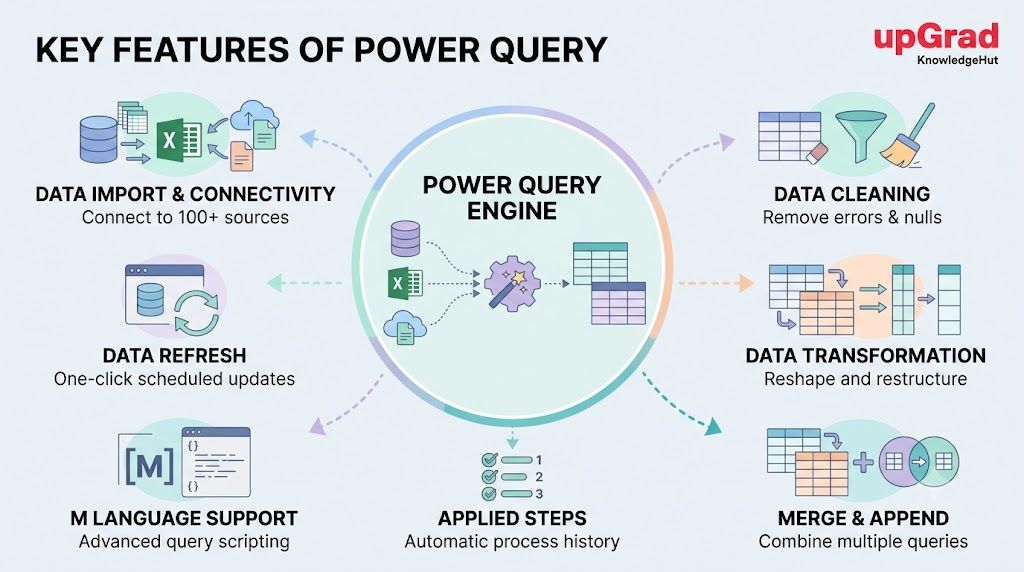
Data import and connectivity
Power Query can connect to a wide range of data sources including Excel workbooks, CSV files, text files, databases, folders and various online sources.
This means data does not always need to be copied and pasted manually. Users can connect to a source, select the required information, and bring it into the Power Query Editor for further work.
Data cleaning
Data will often contain blank rows, duplicates, spelling variations and incorrect values. Power Query has options to remove duplicates, filter out unwanted rows, replace values and deal with a whole range of data quality issues.
For instance if a sales report has the same transaction appearing twice then Power Query can be used to remove the duplicates on the basis of the selected columns.
Data transformation
Data transformation means changing the structure or format of data to make it more useful. Power Query can split a column into multiple columns, combine columns, change date and number formats, rename fields, group records, and pivot or unpivot data.
These options help organize information without changing the original source file in most standard import workflows.
Merge and append queries
Power Query offers two methods which can be used to join datasets.
- Merge: This operation joins two tables using columns that are the same, for example a product ID or an employee ID.
- Append: This is the operation of adding rows from one table to another table which has the same structure.
For example, a company could join its sales table with the products table to include the product names, and it could combine the sales figures for January, February and March into one table.
Applied Steps
Power Query records the transformations applied to a query in a list called Applied Steps. Each step represents an action, such as removing columns, filtering rows, or changing data types.
Users can review these steps, change settings, or remove a step when needed. This makes the process easier to understand and repeat than performing the same manual edits every time.
Data refresh
After setting up a query, users can refresh it to retrieve updated source data and apply the saved transformation steps again.
For example, a monthly report can use the same query when new sales data becomes available. The precise refresh behaviour will of course depend on the source, the connection settings and how the query has been set up.
M language support
Power Query uses a formula language called M to define the data transformations. Users don't need to learn M at all for most of the day to day tasks as the visual editor will generate the required steps.
However people who want more control over the complex transformations can edit the M code in the Advanced Editor.
Also Read: Power BI Skills
How does Power Query work?
Power Query works in a very straightforward manner: connect to the data, transform it, combine and then load the results, and then refresh the query as and when you need it.
Connect to a data source
Firstly pick where the data is coming from. That could be an Excel workbook, a CSV file, a folder of monthly reports or a supported database.
In Excel users can go to the Data tab and select one of the appropriate options under Get Data. The list of sources users see will vary depending on the version of Excel and environment.
Transform and clean the data
Once connected to the source the data comes in and opens in Power Query Editor where users can then remove not required columns, filter rows, change data types, replace values etc.
For instance a customer dataset might have full names in one column and that column could be split into a first name column and a last name column if the data structure allows it.
Power Query records the actions users selected as steps and users can then go on to view and re-use those steps.
Combine and load the results
If the data comes from a number of tables or files then users can merge or append queries as required. Once the data is ready they can then pick where to load it.
In Excel the results can be loaded into a worksheet or the Data Model. In Power BI the prepared data can be loaded into the model for reporting and analysis.
Refresh the query
When the source data changes the user can simply refresh the query to re-run the saved steps against the new data.
For example, if a new sales file is added to a folder that's been correctly configured for a folder based query, the report will include the new records on refresh. The folder connection and query setup has to support that behaviour.
Build on data preparation skills by exploring how AI agents can automate workflows and solve practical business problems through the Applied Agentic AI Certification Course.
What are the common use cases of Power Query?
Power Query is useful whenever data needs to be cleaned, combined, or prepared repeatedly.
Automating recurring Excel reports
Businesses often prepare weekly or monthly reports using similar data. Power Query can record the cleaning and transformation steps once, reducing the need to repeat the same manual work for each reporting period.
Combining data from multiple files
When different teams or branches send separate spreadsheets, Power Query can help combine them into one dataset. This is particularly useful when the files follow a consistent structure.
Preparing data for analysis and dashboards
Data often needs to be organized before it can be analyzed. Power Query can remove unnecessary fields, standardize column names, and prepare tables for use in Excel reports or Power BI dashboards.
Cleaning and standardizing business data
Power Query can be used to make business records more consistent by fixing data types, replacing inconsistent values, removing unwanted rows and standardising formats. The outcome is data that is much easier to analyse and compare.
Also Read: Top 20 Benefits of Power BI you Should Know in 2026
What are the benefits and limitations of Power Query?
Power Query can be a great help with a lot of the data preparation work, but it's important to understand what it's capable of and what it's not.
Benefits of Power Query
- Saves manual effort: Reuses saved transformation steps instead of requiring the same edits every time.
- Combines multiple sources: Brings information from supported files and systems into a common dataset.
- Improves consistency: Applies the same cleaning rules every time the query is refreshed.
- Requires little coding: Handles many common tasks through menus and visual controls.
- Supports analysis: Prepares data for Excel worksheets, data models, and Power BI reports.
Limitations of Power Query
- Source changes can cause errors: Renamed columns, missing files, or changes in data structure may require updates to the query.
- Refresh depends on the source: Connectivity, permissions, credentials, and source availability can affect whether updated data loads successfully.
- Performance can vary: Large datasets and complex transformations may require more processing time and resources.
- It is not a complete reporting tool: Power Query prepares data, but charts, dashboards, data modeling, and advanced calculations may require other tools.
Take your data skills further by learning to work with analytics and AI concepts through the PG Certificate in Data Analytics and Applied AI.
What is the difference between Power Query, Excel formulas, and Power Pivot?
Power Query, Excel formulas, and Power Pivot support different stages of data work. They can also be used together.
Feature |
Power Query |
Excel formulas |
Power Pivot |
| Primary purpose | Importing, cleaning, and transforming data | Performing calculations and applying logic to cells | Building data models and analyzing related tables |
| Main function | Prepares data for analysis | Calculates values based on formulas | Creates relationships and performs calculations using DAX |
| Best used for | Cleaning data, combining files, and automating repetitive tasks | Mathematical calculations, lookups, and conditional logic | Analyzing related datasets across multiple tables |
| How it works | Records and repeats transformation steps | Recalculates results when relevant inputs change | Uses relationships, a data model, and DAX calculations |
| Coding required | Most common tasks need no coding; advanced users can use M | Basic functions are easy to use; complex formulas require more knowledge | DAX is useful for advanced calculations |
| Example | Combining monthly sales files and removing duplicate rows | Calculating total sales or profit in a worksheet | Comparing sales across products, regions, and time periods |
| Typical output | Cleaned data loaded into a worksheet or data model | Calculated values displayed in cells | A data model for analysis and reporting |
Also Read: Power BI with AI vs Traditional Data Analytics: What’s Different?
Conclusion
Power Query makes data preparation easier by helping users import, clean, transform, and combine information without repeating manual tasks. Its features, such as Merge and Append, Applied Steps, and data refresh, make it useful for recurring Excel reports and preparing data for Power BI dashboards.
While most tasks do not require coding, M language offers more control over advanced transformations. Understanding the difference between Power Query, Excel formulas, and Power Pivot also helps users choose the right tool for each task.
Have A Query? Get in Touch With Our Customer Support | upGrad KnowledgeHut
Frequently Asked Questions (FAQs)
1. What is Power Query in Excel?
Power Query in Excel is a built-in data preparation tool that helps import, clean, transform, and combine data from different sources. It allows users to remove duplicates, filter rows, change data formats, and automate repeated data-cleaning tasks. The prepared data can be loaded into an Excel worksheet or the Data Model.
2. How do I use Power Query to combine files?
In Excel, go to Data → Get Data → From File → From Folder and select the folder containing the files. Choose the combine option and review the data in Power Query Editor. This works best when the files have a consistent structure. Load the combined data into Excel when the results are ready.
3. How does Power Query transform data?
Power Query transforms data by applying operations such as filtering rows, removing columns, replacing values, splitting columns, and changing data types. Users can perform these actions through the Power Query Editor without editing the original source file. Each transformation is recorded as a step that can be reviewed and applied again during refresh.
4. What is the difference between merge and append in Power Query?
Merge combines tables horizontally by matching values in one or more columns, similar to joining tables in a database. Append combines tables vertically by adding rows from one table to another. For example, merge can add product names to a sales table, while append can combine January and February sales records.
5. What is M language in Power Query?
M language, also called Power Query Formula Language, is the language used to define data import and transformation steps in Power Query. It runs behind the scenes when users apply actions through the visual editor. Advanced users can edit M code in the Advanced Editor to create custom transformations and more complex queries.
6. Can Power Query work without coding?
Yes, Power Query can handle most common data preparation tasks without coding. Users can import data, remove duplicates, filter rows, change data types, and combine tables using menu options. M language is useful for advanced transformations, but beginners can use Power Query effectively without learning it first.
7. Is Power Query available in both Excel and Power BI?
Yes, Power Query is available in both Excel and Power BI. In Excel, users can access its features through the Data tab, while Power BI Desktop provides the Power Query Editor through the Transform data option. The interface and available connectors may vary, but the core data preparation concepts are similar.
8. Is Power Query suitable for large datasets?
Yes, Power Query can process large datasets, but its performance depends on data size, transformation complexity, available memory, and the source system. Features such as query folding can help push supported transformations to the source database. For very large datasets, users should test refresh performance and consider source and system limitations.
9. What is the difference between Power Query and Excel formulas?
Power Query is mainly used to import, clean, transform, and combine data before analysis. Excel formulas perform calculations, apply conditions, and return results within worksheets. Power Query is useful for repeatable data preparation, while formulas are better suited to cell-based calculations. Both can be used together in the same workflow.
10. Is Power Query easy for beginners?
Yes, Power Query is beginner-friendly because most common operations use a visual editor rather than code. Beginners can start by importing a CSV file, removing unwanted columns, filtering rows, and loading the cleaned data into Excel. Learning how Applied Steps and refresh work helps users automate these tasks as their skills develop.
1643 articles published
KnowledgeHut is an outcome-focused global ed-tech company. We help organizations and professionals unlock excellence through skills development. We offer training solutions under the people and proces...
Get Free Consultation
By submitting, I accept the T&C and
Privacy Policy